
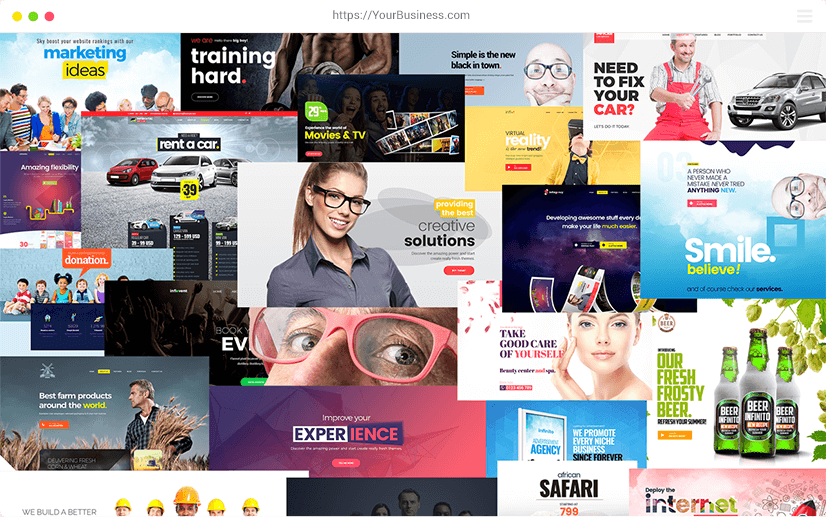
Picking a WordPress theme feels like it should take an afternoon. Then you open a marketplace, see 12,000 themes that all look gorgeous, and three days later you’re still comparing screenshots.
Here’s the uncomfortable part: a lot of those themes will make your site slower, harder to edit, and no more useful to your customers. The pretty ones are often the guiltiest. So before you install anything, run it through these seven checks. They take about ten minutes and they save you a rebuild later.
1. Can you actually change the parts you’ll want to change?
A theme that looks stunning and a theme you can maintain are two different things. If you’ll be updating your site regularly (new services, seasonal banners, fresh blog posts), you need to check that the theme lets you edit colors, banners, widgets, and image sizes without touching code.
Open the live demo and look for a customization panel. If the demo only shows the finished result and never the settings, that’s a warning. Ask the developer directly, or read the theme’s documentation page. If the docs are thin, the support will be too.
2. Is it a niche theme or a multipurpose one?
This is the one that trips up most beginners. Multipurpose themes are built for people who already know how to design. They hand you a blank canvas and a hundred toggles and expect you to assemble something. That’s great if you have the time and the eye. It’s a trap if you don’t.
Niche themes come pre-loaded with the design elements your type of business actually needs, so you spend your time on content instead of layout. If you’re new to this, or you have a budget and a deadline, go niche. You can always move to something more flexible later.
3. How old is it, and is it still being updated?
A theme from 2016 might still work, but it won’t match how WordPress builds pages today, and it probably won’t play nicely with newer plugins. Check the “Last updated” date on the theme page. Anything that hasn’t been touched in a year or more deserves a second look.
Newer themes also tend to ship with the block editor in mind. That matters, because WordPress has moved on and you don’t want to fight a theme that hasn’t.
4. Does it include the basic pages you need?
Before you commit, list what your business actually needs: a header, a scrolling banner or hero section, a contact form, an about page, a services page, and a blog. Then check the demo to see if those exist out of the box.
Missing a contact form is annoying but fixable with a plugin. Missing an about page layout means you’re building it yourself. Know which one you’re signing up for. If you’re still deciding what your site even needs, here’s a rundown of the kinds of sites WordPress can run.
5. How fast does the demo actually load?
Speed isn’t a nice-to-have. It affects your SEO and it affects whether anyone stays long enough to read your homepage. Attention spans online are short, and a site that takes more than about seven or eight seconds to load is asking a lot.
Here’s the trick most people miss: test the theme’s own demo with Google’s PageSpeed Insights, not your finished site. The demo is the best-case scenario. If the demo is slow, your version will be slower.
And remember that themes aren’t the only thing slowing you down. Oversized images are a common culprit, and no theme can fix that for you.
6. Does it work on a phone?
More than half of your visitors will arrive on a phone. Open the demo on yours. Scroll through it. Tap the menu. Check that the pages and sections you need are all there, and that nothing lags or jumps around.
Responsive is the baseline now, but “responsive” can still mean technically fits and genuinely pleasant are two different things. Your mobile version should feel as finished as the desktop one.
7. Does it connect to the places your customers are?
Social icons, sharing buttons, newsletter signup spots. These are small features that are annoying to bolt on later. Check that the theme supports the platforms you actually use. If your business lives on Instagram and you’re selling through a single link, that’s worth planning for early. A universal link page is one approach, and it’s easier to set up when the theme isn’t fighting you.
The short version
Customization options, niche over multipurpose, recent updates, the pages you need, a fast demo, a working phone version, and the social connections your customers expect. Run those seven checks and you’ll skip most of the regret.
Once you’ve picked one, the next thing worth getting right is which plugins to add. A good theme plus two or three useful plugins beats a fancy theme plus fifteen.



No Comments